
An SMB connection can reach TCP 445 and still fail before a share opens, or open a share and fail on one file. Treat the error as a stage to locate. Changing every permission to Full Control can conceal the cause while exposing unrelated data.
Scope and evidence: Proposed Windows 11 Pro client to a Windows Server 2022/2025 member file server using SMB 3 over TCP and Windows PowerShell 5.1. fs01.example.test is 192.0.2.60; share Reports maps to D:\Shares\Reports. The authorized group is EXAMPLE\ReportReaders. These are hypothetical names and paths, not a captured incident. DFS referrals, SMB over QUIC, Azure Files and clustered share scopes require additional endpoint and authorization checks.
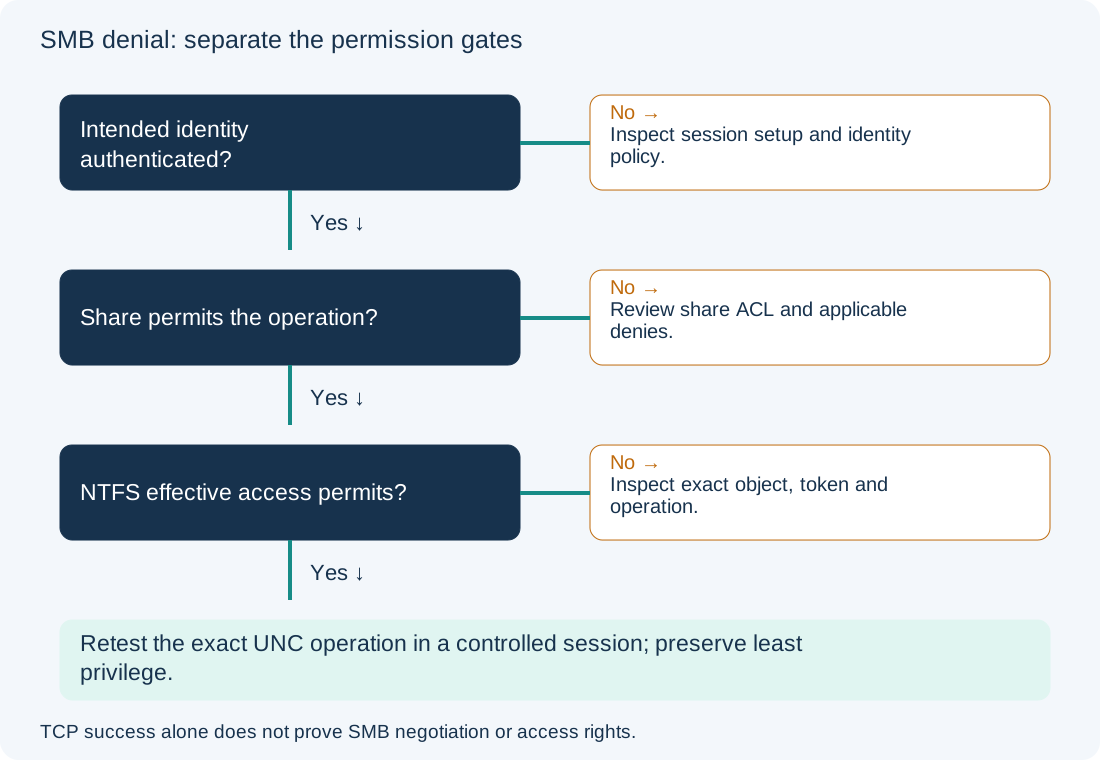
Locate SMB Denial at Session Setup, Tree Connect or File Access
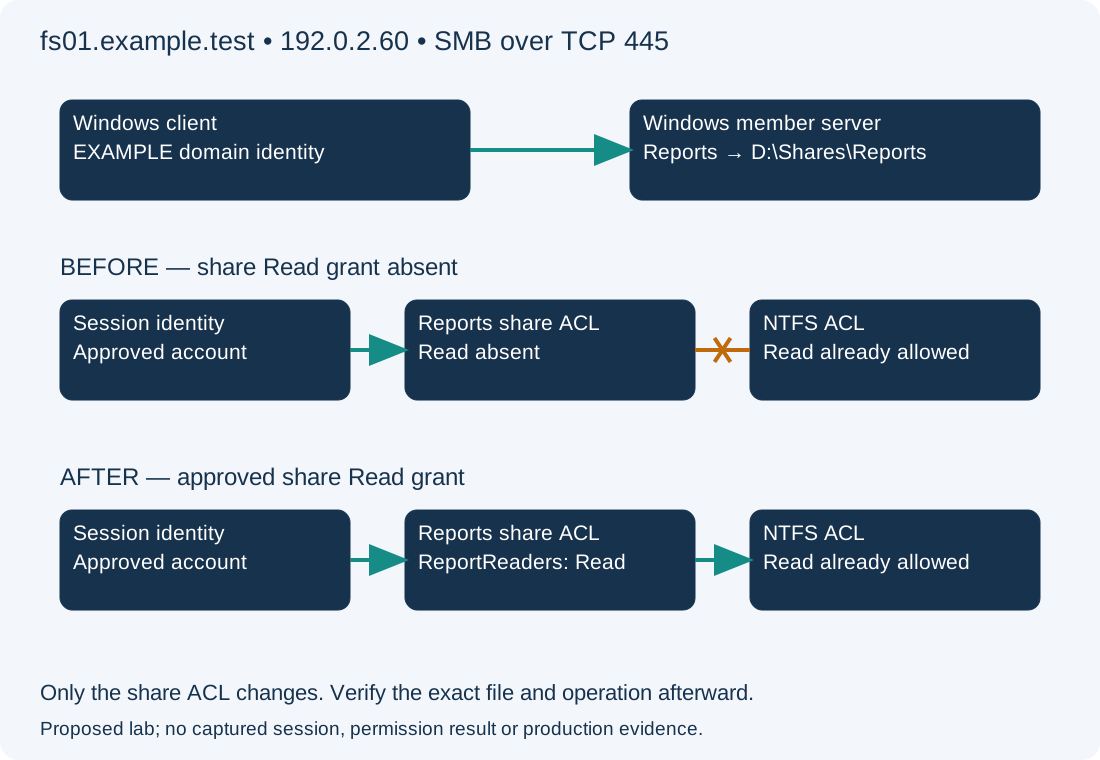
The lab assumes that authentication succeeds using the intended domain identity, the group’s NTFS Read and Execute permission is already correct, and no applicable deny exists. A missing share-level Read entry stops access. Prove each assumption before using the correction below.
On the client, read-only PowerShell, confirm the destination and current session context:
Resolve-DnsName fs01.example.test -Type A
Test-NetConnection fs01.example.test -Port 445
Get-SmbConnection |
    Select-Object ServerName, ShareName, UserName, Dialect, NumOpens
whoami /user
whoami /groups
Expect the inventory address and a successful TCP test in this lab. Get-SmbConnection reports established connections; an empty result can mean failure occurred before a share connection existed. The local interactive identity is not necessarily the account used by an SMB session. Compare the session’s UserName and approved server-side evidence rather than assuming whoami proves remote identity. Do not include passwords in commands or tickets.
| Earliest failed checkpoint | Evidence to seek | Next action |
|---|---|---|
| TCP / negotiation | Correct endpoint, connection, supported dialect/security | Inspect transport and client/server compatibility |
| Session setup | Intended authenticated identity or authentication failure | Investigate account, domain, Kerberos and policy |
| Tree connect | Share exists but requested connection is denied | Inspect share ACL and applicable server policy |
| File create/open | Share opens but one object or operation fails | Inspect NTFS effective access, traversal and requested rights |
These are diagnostic boundaries, not a claim that every denial is an ACL problem. Recent OS security defaults can reveal incompatible signing or guest behavior; keep required protections enabled and fix the supported identity/security configuration. Microsoft describes SMB access-denied causes.
Compare SMB Session Identity, Share ACL and NTFS Effective Access
Record the exact UNC path, account, operation and timestamp. On an authorized server console, use read-only elevated PowerShell:
Get-SmbShare -Name Reports | Select-Object Name, Path, ScopeName
Get-SmbShareAccess -Name Reports
Get-SmbSession | Select-Object ClientComputerName, ClientUserName, NumOpens
Get-Acl -LiteralPath 'D:\Shares\Reports' |
    Format-List Owner, AccessToString
Expected lab evidence is the intended share path and intended session identity. Compare direct and nested group membership, applicable deny entries, inheritance and the exact file’s ACL if only one object fails. Reading an ACL is not a full effective-access calculation: use the Security tab’s Advanced Effective Access tool for the actual account and object, then compare the requested operation. A grant at the share cannot compensate for missing filesystem rights; NTFS permission does not by itself grant remote share access.
Inspect the client SMBClient Connectivity/Security channels and relevant server channels around the attempt. Security event records depend on auditing being configured; their absence does not establish success. A bounded, authorized two-sided trace can distinguish a failing SMB2 Session Setup, Tree Connect or Create response when payload visibility permits it. Encryption can prevent inspection of the operation; do not disable it to make a packet capture easier. Traces can expose names and file contents. Microsoft’s SMB troubleshooting primer explains collection terminology and protocol stages.
Add Only the Approved Missing SMB Share Read Permission
Permission change — hypothetical file server. The data owner has approved read-only Reports access for EXAMPLE\ReportReaders. Confirm the group has no pre-existing allow ACE on this share, no applicable deny applies, and filesystem effective access already permits the required read operation. Save the share ACL and filesystem ACL evidence securely. Check the blast radius: every member of this group receives the share grant, not just the person reporting the error.
On the server, preview and then apply the one approved entry:
Grant-SmbShareAccess -Name Reports -AccountName 'EXAMPLE\ReportReaders' -AccessRight Read -WhatIf
Grant-SmbShareAccess -Name Reports -AccountName 'EXAMPLE\ReportReaders' -AccessRight Read -Confirm
-WhatIf describes the intended action; it does not prove effective access. The confirmed command adds a share allow entry. It does not change NTFS permissions or grant write access. Microsoft documents Grant-SmbShareAccess. For a clustered/scoped share, determine the correct scope and owner instead of using this standalone example unchanged.
Verify SMB File Access and Restore the Share Permission Baseline
Use the intended account in a fresh, controlled session. Save open work before disconnecting any existing mapping; do not run a blanket net use * /delete. Read a designated harmless test file and verify directory listing as required. If write access is intentionally denied, an authorized test against a disposable location should confirm that boundary. Do not test deletion against real data. Correlate the account and attempt with server evidence.
Rollback, only if the baseline had no allow entry for this trustee, is:
Revoke-SmbShareAccess -Name Reports -AccountName 'EXAMPLE\ReportReaders' -Confirm
This removes all share allow ACEs for that trustee, so it is not a safe generic undo if an earlier grant existed. Restore the recorded ACL through the access owner in that case. Existing open handles can retain access until closed; coordinate session handling separately. See the exact revoke behavior.
Prevent recurrence with group-based ownership and separate share/NTFS baselines. For domain discovery, follow the AD DNS checks; for policy ownership, use Group Policy processing. The RDP stages guide applies the same evidence discipline to a different service.