A GPO exists in Group Policy Management, but a workstation still has the old setting. Repeatedly running gpupdate /force cannot repair a disabled link, a denied security filter or a setting configured for the wrong scope. First determine whether the client should receive the GPO, whether processing reached it, and which policy actually won for the affected setting.
Scope and evidence: This is a hypothetical traditional AD DS lab with Windows 11 Pro/Enterprise and Windows Server 2022/2025, using Windows PowerShell 5.1. It is not an Intune/MDM or Entra-only policy guide. No real domain, logs or successful enforcement is claimed. Reading diagnostics is separated from domain changes and client policy refreshes.
Group Policy Not Applying: Symptoms and Controlled Lab
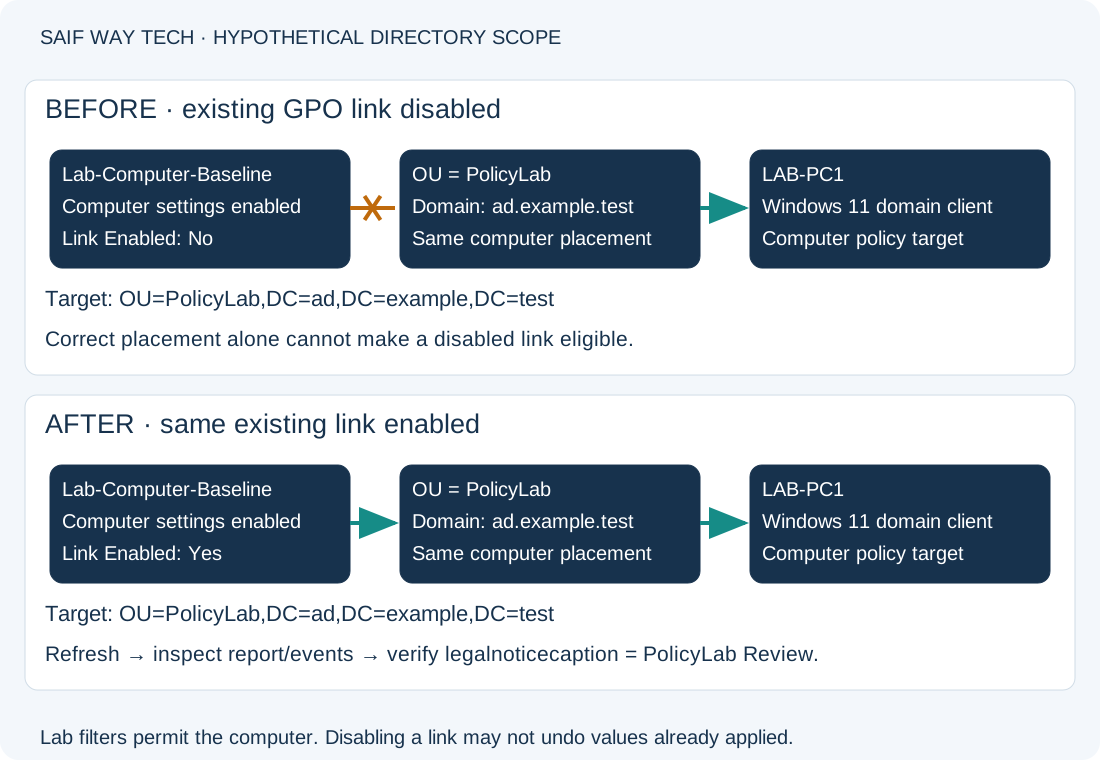
Domain ad.example.test contains OU=PolicyLab,DC=ad,DC=example,DC=test. A disposable computer account LAB-PC1 already resides in that OU. The GPO Lab-Computer-Baseline contains a reviewed computer setting: Interactive logon: Message title for users attempting to log on, with lab text PolicyLab Review. No user-side policy or loopback is involved in this example.
The fault is an existing link between that OU and GPO with Link Enabled = No. The GPO’s computer half is enabled, permissions are appropriate and no WMI filter or conflicting policy applies. Those are findings to establish, not assumptions to copy into an incident. The disabled link can leave the GPO absent from both applied and denied client lists, so absence alone does not prove a security-filter failure.
Use gpresult to Check Applied and Denied Group Policy
Record one specific missing setting, its expected value, whether it belongs to Computer or User Configuration, and the affected object. A GPO linked to a computer OU does not ordinarily apply its user settings to users in unrelated OUs; loopback is a separate, deliberate design. Do not move production accounts between OUs as a diagnostic shortcut.
For this computer-side lab, run these commands in elevated PowerShell on LAB-PC1. The queries do not refresh policy; the HTML report writes a local diagnostic file. Use a new filename rather than overwriting evidence from an earlier incident.
gpresult /scope computer /r
gpresult /scope computer /h "$env:TEMP\PolicyLab-computer-before.html"
Get-ItemProperty -Path 'HKLM:\SOFTWARE\Microsoft\Windows\CurrentVersion\Policies\System' -Name legalnoticecaption -ErrorAction SilentlyContinue
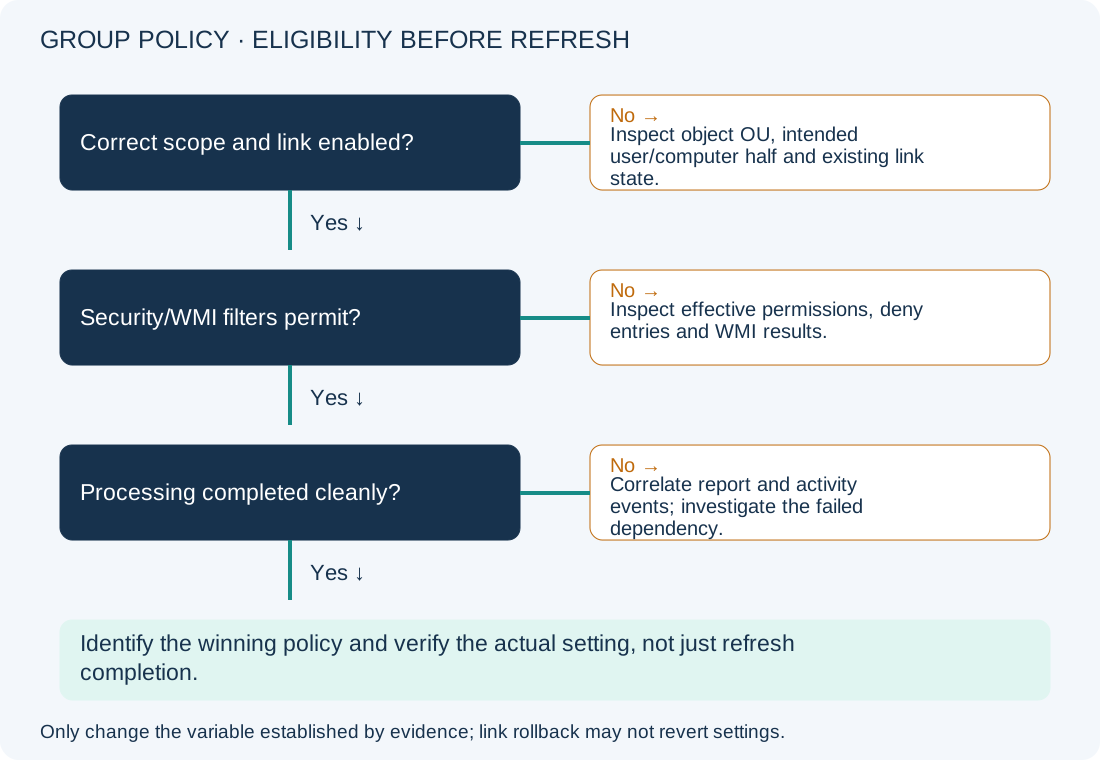
The summary/report should identify the computer context, applied GPOs and relevant filtering details. A missing GPO leads to link, scope and filter checks. A denied GPO needs its stated reason investigated. A GPO listed as applied still does not prove every setting inside it succeeded or took precedence.
The registry read observes this lab’s chosen setting only. PolicyLab Review is the intended post-correction value. An old value, absent property or no output is an observation to correlate with resultant policy; it is not proof that the whole GPO failed. The command intentionally suppresses a missing-property error for this read, so use the report and logs rather than treating silence as success.
For a user-side incident, instead collect gpresult /scope user /r in the affected user’s session. An elevated shell launched with a different administrator identity can describe the wrong user. Do not interpret a different account’s result as the affected user’s evidence.
Check GPO Links, OU Placement, Security and WMI Filters
Use an approved domain admin workstation with ActiveDirectory and GroupPolicy RSAT modules. The following commands are read-only apart from the HTML export. The account needs directory/GPO read permissions; installing RSAT or elevating locally does not automatically grant them.
Get-ADComputer -Identity LAB-PC1 -Properties DistinguishedName |
    Select-Object Name, DistinguishedName
Get-GPInheritance -Target 'OU=PolicyLab,DC=ad,DC=example,DC=test' -Domain ad.example.test
Get-GPO -Name 'Lab-Computer-Baseline' -Domain ad.example.test
Get-GPOReport -Name 'Lab-Computer-Baseline' -Domain ad.example.test -ReportType Html -Path "$env:TEMP\PolicyLab-GPO-before.html"
| Evidence | Healthy result for this lab | Abnormal result and next action |
|---|---|---|
| Computer distinguished name | LAB-PC1 lies in PolicyLab OU | Different OU/container: compare intended targeting with the owner. Do not relocate it blindly; other policies can change. |
| GPO inheritance/link inspection | Intended link enabled and present in applicable inheritance | Direct link disabled, inheritance blocked or unexpected enforced ancestor: inspect GPMC and the recorded link state. Do not use Enforced as a universal fix. |
| GPO status | Computer Configuration is enabled | Computer half or whole GPO disabled: confirm whether this was intentional before altering it. |
| GPO settings report | The exact expected computer setting/value is configured | Wrong half, Not Configured or wrong value: correct the intended setting through controlled policy management rather than forcing refreshes. |
| GPMC delegation/filter inspection | Intended computer has required Read and Apply Group Policy eligibility, with no applicable deny | Security denial: verify effective permissions and group membership; preserve the intended restriction rather than granting broad access. |
| GPMC WMI filter inspection | No filter in this simplified lab, or a matching filter in a real deployment | False/slow filter: validate the query, scope and client response separately. |
Get-GPInheritance reports link/inheritance information; it does not evaluate every client’s WMI and security eligibility. Use GPMC to expand the OU’s linked GPOs and inspect Link Enabled, the GPO’s Scope/Security Filtering and Delegation tabs. Compare the directly linked list as well as inherited links. For this lab, the existing PolicyLab link must be confirmed disabled while the object placement and GPO settings are correct.
Separate GPO Eligibility from Processing and Extension Errors
On the client, use an elevated session to read recent processing events:
Get-WinEvent -FilterHashtable @{
    LogName = 'Microsoft-Windows-GroupPolicy/Operational'
    StartTime = (Get-Date).AddHours(-2)
} -MaxEvents 80 | Select-Object TimeCreated, Id, LevelDisplayName, ActivityId, Message
Expect events that belong to the relevant computer-processing attempt. No events in that window may mean the window or log is wrong, rather than success. Match the activity ID and timestamps to the attempt, then inspect the full event details; do not combine a user refresh and a computer startup into one apparent transaction.
A DNS/DC connectivity error needs directory-discovery investigation. A SYSVOL access or client-side extension error needs that dependency checked. The AD DNS discovery guide helps with the first branch; it does not replace checking policy file access or replication. An eligible GPO can still deliver different results because of conflicting settings, precedence, extension behavior, or a required foreground/logon/restart cycle.
Enable the Confirmed Disabled GPO Link in the Lab
Domain configuration change; delegated link-management rights required. The lab OU contains only the disposable test computer, and the GPO contents have been reviewed. Record the existing link’s state, order and enforcement, the chosen setting’s previous value and relevant GPO/OU backups before proceeding. A GPO backup is not a complete OU-link/permission backup, so preserve those separately.
On the admin workstation:
Set-GPLink -Name 'Lab-Computer-Baseline' -Domain ad.example.test -Target 'OU=PolicyLab,DC=ad,DC=example,DC=test' -LinkEnabled Yes
This enables the existing link without intentionally changing order or enforcement. It does not create a missing link or repair filtering. Enabling a link affects eligible objects within its scope, not just the computer being inspected; review the full scope before any production equivalent. Do not change multiple security/WMI/link variables together.
After confirming the link state and allowing directory/SYSVOL replication as applicable, run the following on LAB-PC1 in elevated PowerShell. This is policy application, not a read-only diagnostic:
gpupdate /target:computer /wait:120
gpresult /scope computer /h "$env:TEMP\PolicyLab-computer-after.html"
The refresh normally applies changed computer policy. A completion message does not prove this particular setting won. A timeout is not proof that background processing stopped. Review any restart requirement with the operator; do not add automatic reboot/logoff flags. Use a forced refresh only if an approved diagnostic plan specifically requires reapplying all relevant settings.
Verify the GPO Setting and Roll Back the Link Change
Repeat link inspection and compare before/after computer reports. Expect the lab GPO to be eligible/applied, with no relevant processing error and the intended setting identified in resultant policy. Repeat the registry read from step 1: the caption should now be PolicyLab Review. Verify the actual logon notice at a controlled next sign-in if needed; do not interrupt a user’s active session just to inspect it.
For the recorded disabled-link baseline, this domain change rolls back link eligibility:
Set-GPLink -Name 'Lab-Computer-Baseline' -Domain ad.example.test -Target 'OU=PolicyLab,DC=ad,DC=example,DC=test' -LinkEnabled No
Disabling a link does not guarantee all values already applied to clients return to their old state. Security settings, preferences and other extensions can have persistence behavior. Restore the recorded lab setting through an approved scoped policy/recovery procedure and verify the resultant local value. Do not promise rollback is complete merely because the link is disabled, and do not delete registry branches or the Group Policy cache as a broad reset.
Prevent GPO Scope Errors and Find Related Guides
Keep GPO intent, scope, link state/order, filters and expected resultant settings in the change record. Pilot link changes in a limited OU, compare reports on a known-good and affected computer, and monitor processing evidence before expanding the scope. If a client has no usable address, start with the DHCP no-lease guide before pursuing directory policy dependencies.
Microsoft Group Policy Troubleshooting References
- Microsoft: applying Group Policy troubleshooting guidance.
- Microsoft: Group Policy processing.
- Microsoft: gpresult and gpupdate.
- Microsoft: Get-GPInheritance, Get-GPOReport and Set-GPLink.
- Microsoft: Windows security baseline setting mappings, for the logon-caption policy path and registry value used as the lab verification target.