
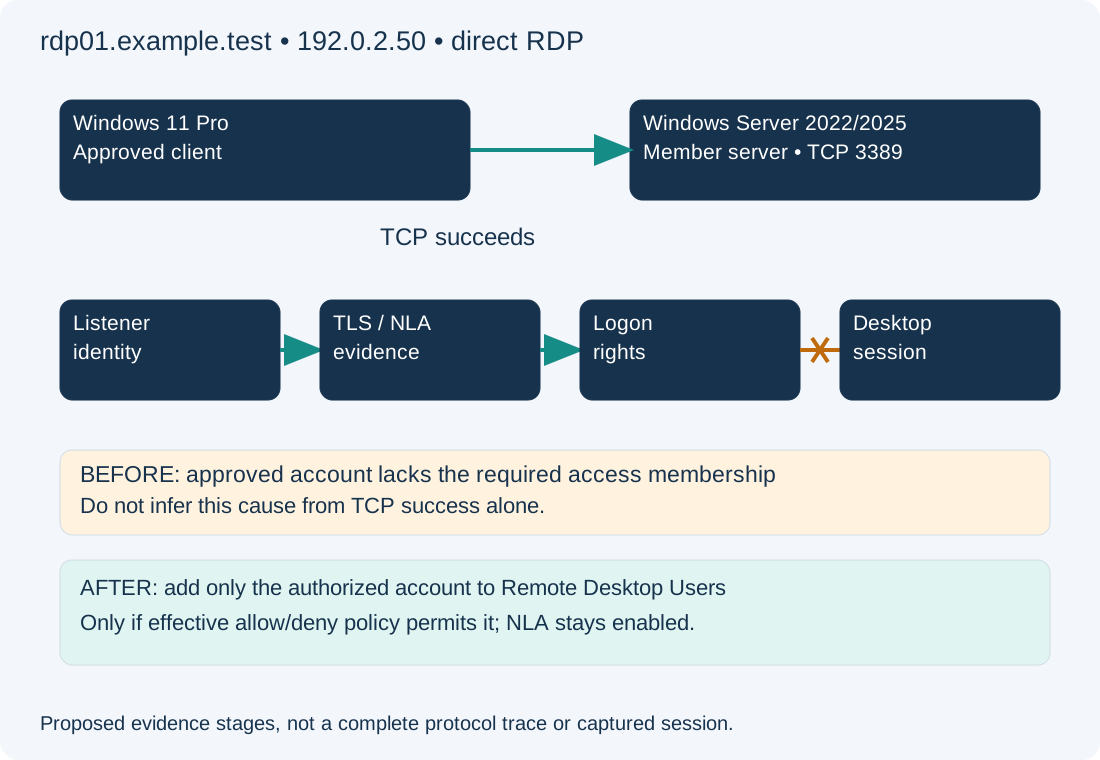
TcpTestSucceeded : True means that a TCP connection completed to the tested address and port. It does not identify the listening process or prove that RDP negotiation, identity checks and session admission succeeded. Record the exact Remote Desktop error and its time, then investigate the next failed stage instead of opening more firewall ports.
Scope and evidence: Proposed Windows 11 Pro client to a Windows Server 2022/2025 member server, using direct RDP and Windows PowerShell 5.1. The target is rdp01.example.test at 192.0.2.50; administrative access is through a separate trusted console. These are documentation names/addresses, not a working public service. No Windows logs or successful sessions are claimed. RD Gateway, brokered RDS deployments and Azure-specific access layers need their own additional checks.
Why TCP 3389 Success Does Not Prove an RDP Session
In the proposed example, a domain account can reach the correct RDP listener and complete identity authentication, but it is not entitled to an interactive remote session under the approved host policy. The eventual correction is a narrowly scoped access-group change, only after checking allow and deny rights. Do not assume every post-TCP failure has this cause.
Verify RDP DNS, Target Address and Listener Ownership
On the client, read-only PowerShell:
Resolve-DnsName rdp01.example.test -Type A
Test-NetConnection -ComputerName rdp01.example.test -Port 3389 -InformationLevel Detailed
Compare the resolved address and RemoteAddress to inventory. The expected lab address is 192.0.2.50 and TCP success is True. A success against an unexpected NAT target or stale DNS record does not validate the intended server. Correct that mapping first. Testing by IP may help isolate DNS but can alter certificate-name and authentication behavior, so use the approved hostname for the final test. Microsoft’s direct-RDP connection guidance provides the transport and listener background.
On the target console, elevated read-only PowerShell:
Get-Service TermService
Get-NetTCPConnection -LocalPort 3389 -State Listen |
    Select-Object LocalAddress, LocalPort, OwningProcess
qwinsta
Inspect the owning PID with Get-Process -Id followed by the returned numeric PID. Expected evidence is a running service and an RDP listener in Listen state, with the port owned by the intended service host. A service host PID can contain several services; correlate with the service rather than assuming the process name alone proves RDP. If the deployment uses a custom port, inspect that approved port instead. Do not restart TermService during a remote-only investigation: existing sessions can be disrupted. See Microsoft’s general listener troubleshooting.
Use RDP Event Logs to Locate TLS, NLA or Session Failure
Make one approved connection attempt, note client and server times, and collect a short window from the target console:
$since = (Get-Date).AddMinutes(-10)
$channels = @(
    'Microsoft-Windows-TerminalServices-RemoteConnectionManager/Operational',
    'Microsoft-Windows-TerminalServices-LocalSessionManager/Operational'
)
foreach ($channel in $channels) {
    Get-WinEvent -FilterHashtable @{LogName=$channel; StartTime=$since} -ErrorAction Continue |
        Select-Object TimeCreated, Id, LevelDisplayName, Message
}
Get-WinEvent -FilterHashtable @{LogName='System'; ProviderName='Schannel'; StartTime=$since} -ErrorAction Continue |
    Select-Object TimeCreated, Id, Message
Expected output is timestamped events if those channels have relevant records. No matching event is not proof of successful negotiation: verify logging, time synchronization and the actual destination. Preserve errors when a channel cannot be read. Where auditing is enabled, have an authorized administrator correlate Security log failures with the account and attempt; redact user identifiers before sharing. Never infer a desktop session solely from an authentication-related event ID.
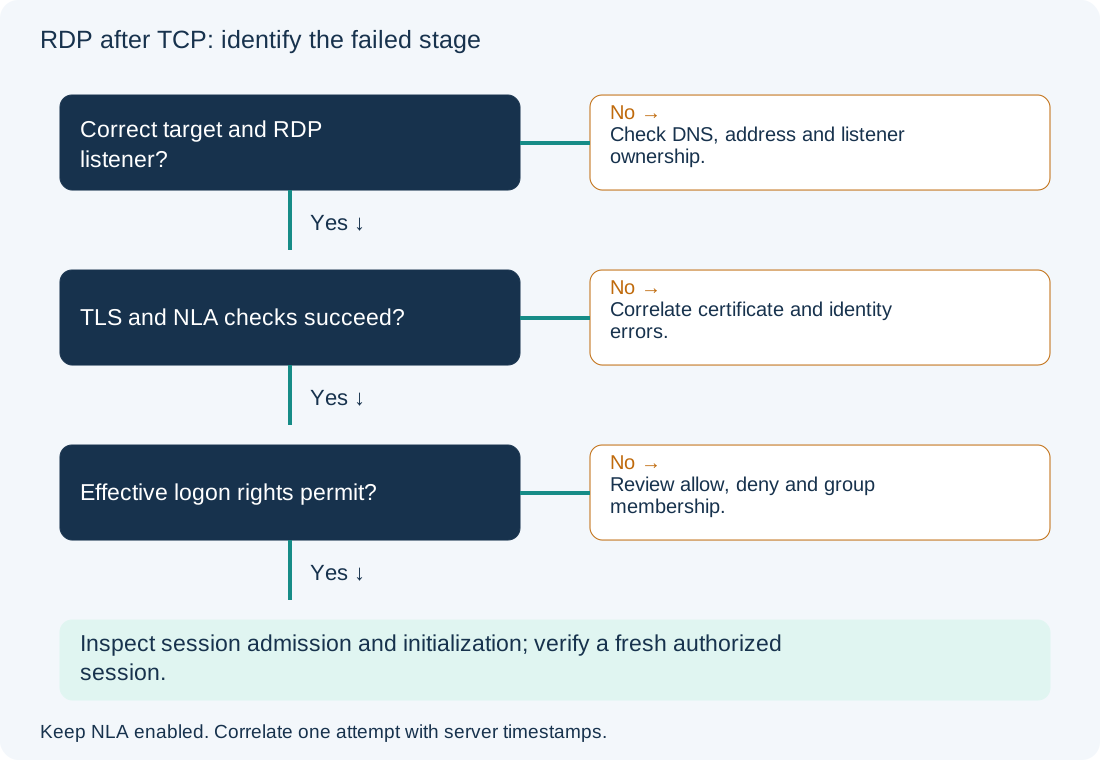
| Evidence around the attempt | Candidate stage | Next focused check |
|---|---|---|
| Wrong server or no matching listener | Endpoint/service identity | Fix DNS, forwarding or listener ownership |
| Certificate or Schannel errors | TLS negotiation | Check listener binding, validity, name, trust chain and private-key access |
| CredSSP, account or domain errors | NLA/authentication | Check supported updates, credentials, lockout, time and AD reachability |
| Authentication succeeds, logon denied | Authorization | Check effective allow/deny logon rights and group membership |
| Session starts then disconnects | Session admission or initialization | Inspect session limits, host resources and relevant RDS logs |
For certificate investigation, inspect configuration without rebinding it:
Get-CimInstance -Namespace root/cimv2/TerminalServices -ClassName Win32_TSGeneralSetting |
    Where-Object TerminalName -eq 'RDP-tcp' |
    Select-Object TerminalName, SSLCertificateSHA1Hash, SecurityLayer, UserAuthenticationRequired
Correlate the reported certificate hash with the host’s certificate stores and approved certificate configuration. Do not delete the certificate, accept an unexpected identity or disable NLA as a blanket fix. Microsoft’s listener certificate guidance covers binding requirements; session disconnection guidance addresses later failures.
Check Effective Remote Desktop Allow and Deny Logon Rights
For this lab’s non-domain-controller member server, an authorized console administrator checks Remote Desktop Users membership and the effective computer policy. Built-in group names are localized; its well-known SID is stable:
Get-LocalGroupMember -SID 'S-1-5-32-555'
gpresult /scope computer /h "$env:TEMP\rdp-computer-policy.html" /f
The first command lists direct members; it does not fully expand nested AD groups. The second writes a local report, without changing policy. Review the winning settings for Allow log on through Remote Desktop Services and Deny log on through Remote Desktop Services under computer security settings. Check nested membership and user token effects. A deny right takes precedence over an allow; adding a user to a local group cannot defeat that deny. Domain policy may also replace local group membership. The Group Policy guide explains how to trace scope and effective processing.
Grant Only the Approved RDP Access and Verify Rollback
Access change — hypothetical member-server lab. Assume the approved effective policy allows Remote Desktop Users, no deny applies, and the authorized domain account EXAMPLE\rdp.operator is missing solely from that group. Record baseline direct members and get the access owner’s approval. From the separate elevated console:
$group = Get-LocalGroup -SID 'S-1-5-32-555'
Add-LocalGroupMember -Group $group.Name -Member 'EXAMPLE\rdp.operator'
Do not use this on a domain controller, where local account/group management differs, or where GPO owns the membership; update the authoritative policy through its owner instead. Do not grant Administrators membership to bypass a session-right issue. Microsoft documents Remote Desktop logon rights.
Retest a fresh session using the approved hostname and account. The expected lab outcome is a desktop session with NLA still required, accompanied by matching session evidence. Verify the account’s intended privilege level and log off afterward. If the attempt still fails, return to the actual event stage rather than adding further permissions.
Rollback removes only the membership introduced above, provided it was absent from the baseline:
$group = Get-LocalGroup -SID 'S-1-5-32-555'
Remove-LocalGroupMember -Group $group.Name -Member 'EXAMPLE\rdp.operator'
An existing session may retain its token; coordinate session termination separately. Retain the evidence window, policy ownership and access expiry in the change record. For domain-discovery faults, use the AD DNS guide. Keeping these stages distinct prevents a successful TCP test from becoming a reason to weaken authentication.