A Windows domain join reports that an Active Directory domain controller could not be contacted. Reaching a public website does not validate directory discovery: the client needs a DNS resolver that can answer the AD domain’s service records and a usable path to the returned controllers.
Scope and evidence: Hypothetical lab, not a customer incident or captured device output. Documentation addresses are illustrative and must be replaced in an isolated lab. Commands were reviewed against the primary references below; no live switch or domain was tested. Read-only checks come first. Configuration changes require an authorized maintenance window, a saved baseline and a tested management/rollback path.
AD Domain Controller Discovery Failure: Symptoms and Scope
This guide addresses traditional Active Directory Domain Services discovery from Windows 11 Pro/Enterprise and Windows Server 2022/2025 with Windows PowerShell 5.1. It is not an Entra ID join or managed Entra Domain Services procedure. Windows Home cannot join a traditional AD domain. Error 0x54b means the domain could not be found/contacted; DNS is a candidate, not a diagnosis established by the code alone.
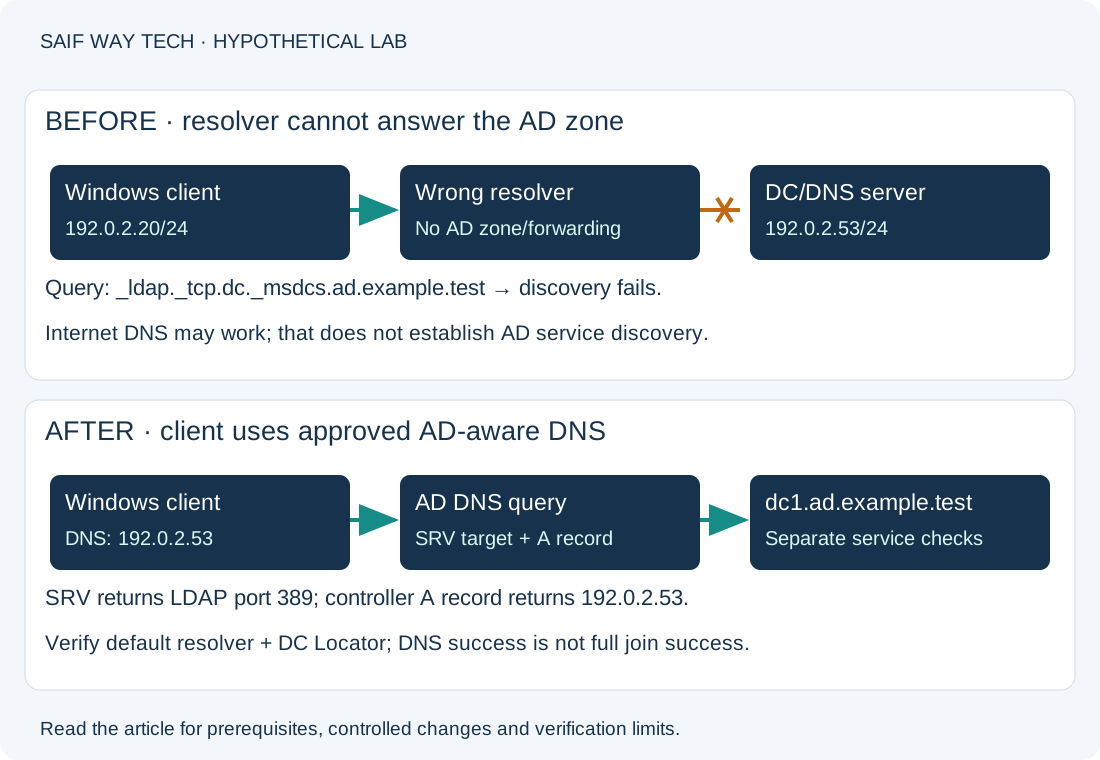
The hypothetical lab uses ad.example.test, a client at 192.0.2.20/24 and DC/DNS server dc1.ad.example.test at 192.0.2.53/24. Addresses and the .test domain are examples only. The fault is a client using a resolver without knowledge of the AD zone; the server’s AD DNS records and network path are otherwise healthy.
Check Windows Adapter DNS Server Selection
Run these read-only commands on the affected client. Ordinary local users can normally read these settings. A VPN or multiple adapters can affect resolver selection, so identify the actual interface in use.
Get-NetIPConfiguration
Get-DnsClientServerAddress -AddressFamily IPv4
Get-DnsClientServerAddress -AddressFamily IPv6
Healthy evidence is the intended address, prefix, route and approved DNS servers able to resolve the directory zone. In this IPv4 lab, the active interface should use 192.0.2.53; production may have multiple AD-aware resolvers and IPv6. A public or isolated router resolver is suspicious only if it cannot resolve/forward the internal zone. Do not disable IPv6 as a diagnostic shortcut.
Record the interface index and whether DNS came from DHCP or static configuration. A working browser can reflect cached/public DNS while AD discovery still fails. If all clients in one subnet are affected, investigate DHCP DNS options and resolver reachability before changing each workstation.
Compare Default and Explicit AD DNS SRV Queries
Use PowerShell’s DNS client cmdlet. These are queries, not DNS configuration changes.
Resolve-DnsName -Name _ldap._tcp.dc._msdcs.ad.example.test -Type SRV -DnsOnly
Resolve-DnsName -Name _ldap._tcp.dc._msdcs.ad.example.test -Type SRV -Server 192.0.2.53 -DnsOnly
Resolve-DnsName -Name dc1.ad.example.test -Type A -Server 192.0.2.53 -DnsOnly
The SRV lookup should return one or more controller targets and LDAP port 389. Each returned target needs an appropriate address record; in this IPv4 lab dc1 resolves to 192.0.2.53. Inspect AAAA answers too in an IPv6-enabled environment. Prefer the actual returned target over assuming every environment uses dc1.
| Result | What it suggests | Next action |
|---|---|---|
| Default lookup fails; explicit AD DNS succeeds | Resolver selection/forwarding differs | Check adapter, VPN policy and DHCP options. Confirm repeated results before changing settings. |
| Both SRV queries return NXDOMAIN | Wrong domain/query, zone contents or delegation | Confirm the domain FQDN and involve the DNS/AD owner. Do not create guessed SRV records. |
| Explicit query times out | Server path, service or DNS policy issue | Verify route and DNS service reachability; a timeout is different from a negative DNS answer. |
| SRV succeeds but controller address fails | Missing/stale host record or split DNS | Validate authoritative records and replication with the directory owner. |
| SRV and addresses succeed | Basic DNS discovery works for those queries | Continue with DC Locator and required service paths. |
Do not replace AD DNS with public DNS as a workaround. A successful explicit query proves only that the chosen server answered that question, not that Windows will use it for every later lookup.
Test DC Locator and Required Domain Controller Paths
Run these read-only checks on the client. nltest is a Windows diagnostic utility; if absent, use an approved admin workstation with the applicable Windows/RSAT tooling. Collect logs from an elevated session when permissions require it.
nltest /dsgetdc:ad.example.test
Test-NetConnection -ComputerName dc1.ad.example.test -Port 389
Test-NetConnection -ComputerName dc1.ad.example.test -Port 445
Get-Content -Path "$env:windir\debug\NetSetup.log" -Tail 100
DC Locator should identify a controller and the intended domain. Its cached answer can differ from a fresh DNS query, so correlate the returned controller, timestamps and current resolver results. TCP tests should show TcpTestSucceeded : True if those services and policies permit them. False directs you to routing, listener and firewall investigation. These tests cover two TCP ports only: they do not validate UDP LDAP discovery, Kerberos, RPC endpoint mapper/dynamic RPC or the full join port requirements.
NetSetup.log contains join attempts and status codes. Match the failing attempt’s time and stage instead of treating an old error as current. Sanitize usernames, domains, addresses and other internal identifiers before escalation. If discovery succeeds but joining fails later, investigate time synchronization, permissions, account reuse protections and service-specific policy rather than repeatedly changing DNS.
Correct the Client DNS Resolver in the Controlled Lab
Configuration-changing; elevated PowerShell required. In this lab only, assume interface index 12 is the confirmed active adapter and the baseline uses DHCP DNS. Confirm 192.0.2.53 is an authorized resolver hosting or resolving the AD zone. Changing DNS can interrupt applications and a remote management session; keep console access and record the original settings first.
Set-DnsClientServerAddress -InterfaceIndex 12 -ServerAddresses 192.0.2.53
Clear-DnsClientCache
The setter makes a static interface override, even if addresses came from DHCP. Cache clearing removes local cached answers; it does not repair server records. For a managed client fleet, correct the intended DHCP DNS options or device/VPN policy through the responsible team instead of leaving workstation overrides indefinitely. Preserve required redundant resolvers in a real deployment.
For the stated DHCP baseline, rollback is:
Set-DnsClientServerAddress -InterfaceIndex 12 -ResetServerAddresses
Clear-DnsClientCache
This returns DNS to the interface’s default source. If the original settings were static, restore the recorded server list instead. In this fault-injection lab rollback may reintroduce the broken resolver; production rollback must follow the approved recovery plan.
Verify AD DNS Discovery and the Intended Domain Operation
Repeat the adapter DNS check, then the default-server SRV query and target address lookup. Confirm they now agree with the explicit approved-server query. Repeat DC Locator and service tests against the returned controller. Only after those checks, retry the join through the approved workflow with an authorized account; joining changes domain membership and can require restart. Verify the new attempt in NetSetup.log and the expected computer account state with the AD owner.
If DNS remains correct but joining fails, stop broad DNS changes and escalate the exact later-stage error with sanitized evidence. The Ubuntu DNS guide offers a related resolver-versus-IP diagnostic pattern for Linux, while the NOC workflow helps isolate affected scope.
Prevent AD DNS Resolver Errors and Review Microsoft References
Document AD-aware resolver paths for office, VPN and remote subnets. Monitor SRV and host records, DNS availability and replication. Include domain discovery in workstation provisioning tests, rather than validating only internet access.
- Microsoft: domain join error 0x54b: discovery symptoms and DNS/network causes.
- Microsoft: domain controller location troubleshooting: locator investigation and directory-side checks.
- Microsoft: Get-DnsClientServerAddress and Set-DnsClientServerAddress: reading, overriding and resetting interface DNS settings.
- Microsoft: domain join log analysis: correlating DNS and later join stages.