A DHCP console can show free addresses while clients in one VLAN receive no lease. Available capacity does not prove that a request reaches the correct scope, that the server permits that client, or that the reply reaches the endpoint. Follow one transaction across the client, relay and server before expanding a pool or deleting leases.
Scope and evidence: Hypothetical IPv4 lab using Windows 11 and Windows Server 2022/2025 DHCP, with a Catalyst 9300 IOS XE 17.15 Layer 3 relay. It is not a production capture. Addresses are documentation examples. No device execution or successful real lease is claimed. The steps distinguish queries, traffic-generating tests and configuration changes.
DHCP No-Lease Symptoms with Free Scope Addresses
The client access port is Gi1/0/10 in VLAN 20. It should receive 192.0.2.100–192.0.2.150/24, with gateway 192.0.2.1 on the relay’s Vlan20 SVI. The relay’s Vlan100 SVI is 198.51.100.1/24; DHCP server dhcp1.ad.example.test is 198.51.100.10/24, using that address as its default gateway. The active server scope is 192.0.2.0/24 and has eligible free addresses.
The injected fault is a missing ip helper-address on Vlan20. VLAN transport, IP routing, server authorization and the return path are assumed healthy only after the checks below confirm them. There is no DHCP failover, Option 82 override or redundant first-hop gateway in this simplified example.
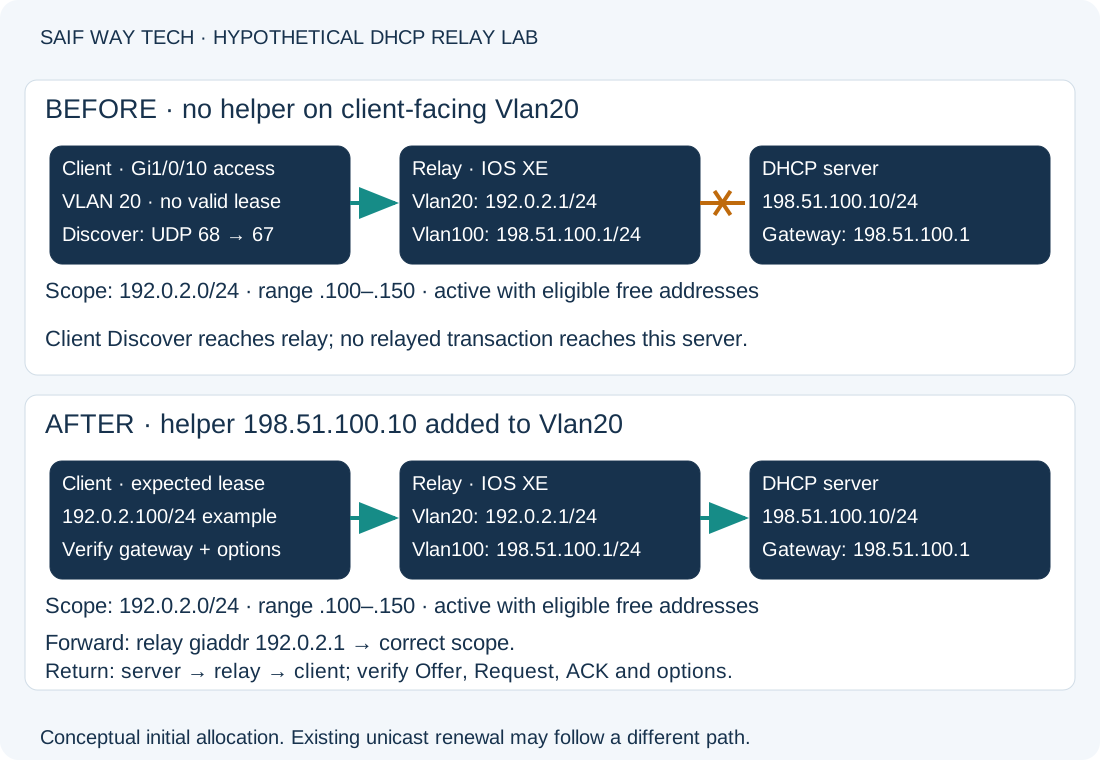
A Windows client may have an APIPA address, an old lease or no usable address. A 169.254.x.x address is a symptom of failed IPv4 allocation, not proof that the pool is full. If other VLANs work, prioritize the affected VLAN/relay path while still checking the exact server scope.
Check the DHCP Client Adapter and VLAN
On the affected Windows client, run these read-only checks. Reading them normally does not require elevation:
ipconfig /all
Get-Service -Name Dhcp
ipconfig /all should identify the intended adapter, whether DHCP is enabled, and any current lease/server information. A static adapter or the wrong active NIC takes you to endpoint configuration, not the relay. Get-Service should show the DHCP Client service running; a stopped or failing service needs endpoint investigation before network changes. Compare a known-good client only if it uses the same intended scope and path.
On the Cisco relay, these privileged EXEC checks are read-only:
show interfaces gigabitEthernet1/0/10 switchport
show interfaces trunk
show ip interface brief
show ip interface vlan 20
show running-config interface vlan 20
show running-config | include service dhcp
show ip route 198.51.100.10
| Check | Healthy evidence | Abnormal result and next action |
|---|---|---|
| Access port/trunk | Client belongs to VLAN 20; any intervening trunk carries 20 | Wrong VLAN or nonforwarding trunk: follow the VLAN gateway guide before editing DHCP. |
| Interface summary | Vlan20 and server-facing Vlan100 up/up | Down SVI: inspect VLAN existence, forwarding members and administrative state. |
| Vlan20 IP details/config | 192.0.2.1/24, intended helper 198.51.100.10 |
Missing helper is a candidate only when the server is off-subnet. A helper on the server-facing SVI does not replace one on the client-facing SVI. |
| Global DHCP service line | No no service dhcp override; the relay service is enabled by default on this platform |
no service dhcp disables relay operation even if helpers exist. Review why it was set; do not override it without authorization. An empty filtered result is normal for an omitted default. |
| Server route | Selected route through Vlan100 in this lab | Missing/wrong route or VRF: repair the intended path with its owner, then retest; a helper does not create routing. |
Do not assign an arbitrary static address to a production client as the first test. That can hide DHCP failure or introduce an address conflict. The endpoint does not need to ping the remote server before its initial Discover can be investigated.
Verify Windows DHCP Scope State and Available Addresses
Run the following from an approved Windows admin workstation with the DhcpServer RSAT module, using an account authorized to query this DHCP server. Elevation alone does not grant remote permissions. These queries do not modify DHCP configuration:
Get-DhcpServerInDC
Get-DhcpServerv4Binding -ComputerName dhcp1.ad.example.test
Get-DhcpServerv4Scope -ComputerName dhcp1.ad.example.test -ScopeId 192.0.2.0
Get-DhcpServerv4ScopeStatistics -ComputerName dhcp1.ad.example.test -ScopeId 192.0.2.0
Get-DhcpServerv4Lease -ComputerName dhcp1.ad.example.test -ScopeId 192.0.2.0 -AllLeases
The first lists AD-authorized DHCP servers in this domain-backed Windows lab. Confirm the intended server/address; this is not a check for non-Windows DHCP servers. The binding query should show the intended server interface enabled for DHCP; a disabled/wrong binding directs you to server configuration review. The scope query should show the intended subnet mask, range and Active state. A wrong subnet or inactive scope needs server-side review, not an additional helper destination.
Scope statistics should indicate available addresses in this scope. Free addresses in a different scope say nothing about VLAN 20. In a failover deployment, also examine partner state and allocation ownership; the simplified lab has no partner. The lease query shows active and other recorded states so that stale/declined entries and client identifiers can be investigated. Do not bulk-delete leases to make the statistics look better.
If capacity and scope state look healthy but the server rejects the client, review DHCP policies, filters, reservations, exclusions and server event/audit evidence. Record service/binding state on the DHCP server if no requests receive replies. None of these queries proves a Discover reached the service.
Find the Missing DHCP Discover, Offer, Request or ACK
Use an authorized, time-limited capture at the client-side segment and DHCP server, adding a relay-side observation if needed. In Wireshark, the display filter below shows DHCP’s UDP ports; it is a display filter, not a shell command or a guarantee of capture coverage:
udp.port == 67 || udp.port == 68
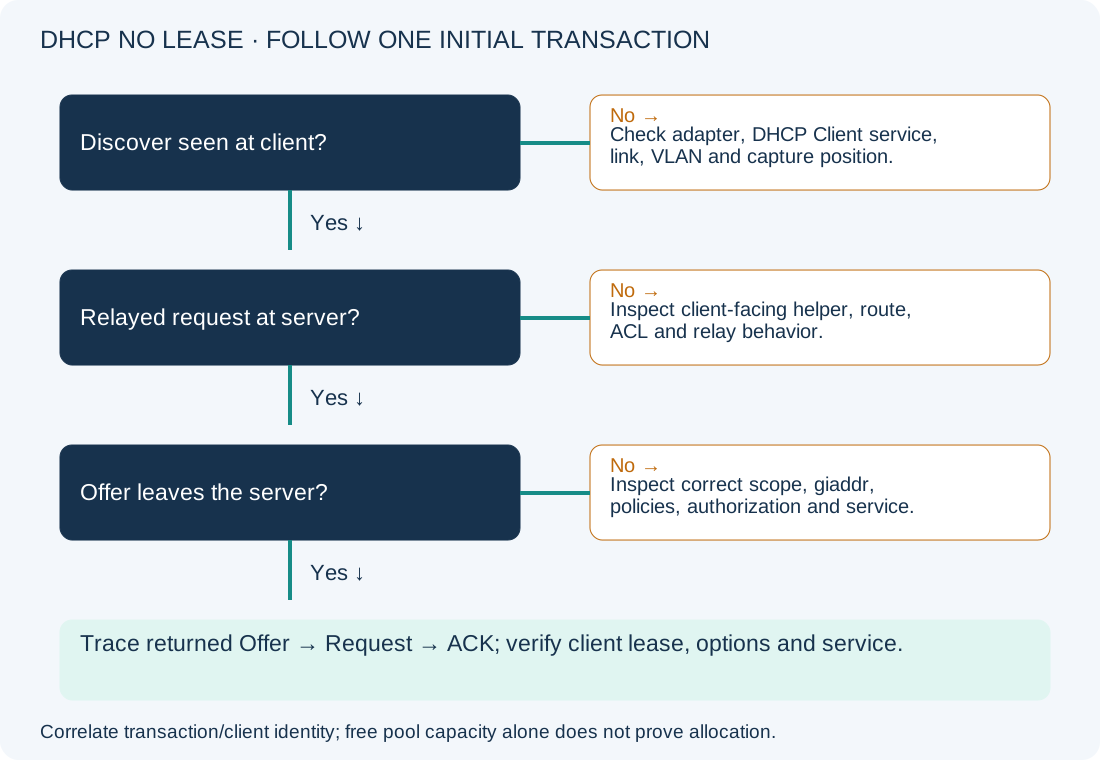
Correlate the transaction identifier and client identity, not timestamps alone. A DHCP client identifier may differ from a displayed MAC address. Capture real evidence locally and sanitize it before sharing; the table describes expected stages rather than fabricated output.
| Observation point | Expected initial-allocation evidence | If it is missing |
|---|---|---|
| Client segment | Discover from client UDP 68 toward server UDP 67 | Check adapter/service, link, VLAN and capture position. |
| Server side of relay | Relayed request toward 198.51.100.10, normally UDP 67 to 67, giaddr 192.0.2.1 |
Compare helper, route, ACL and relay behavior. No server packet alone does not distinguish these causes. |
| DHCP server | Offer selected for the subnet identified by the relay, returned toward the relay | Inspect scope selection, capacity, policy, authorization, service and return routing. |
| Client segment again | Offer followed by Request and ACK, or a meaningful failure response | Server Offer present but client Offer missing: trace return path, snooping/trust and relay delivery before changing scope capacity. |
The relay’s giaddr gives the server the client’s subnet context in this conventional setup. Replies toward the client use broadcast or unicast delivery as appropriate to client state and flags. Initial DORA and later unicast lease renewal do not necessarily take the same path. A successful existing client’s renewal is therefore insufficient proof that new clients can obtain leases.
Add the Confirmed Missing DHCP Relay Helper
Configuration-changing, privileged Cisco access required. Proceed only when the intended remote server, active scope, VLAN path and route are established, and Vlan20 has no required helper for that server. Record the original interface stanza and use console/out-of-band access. Helper changes can expose client broadcasts to additional services: review the platform’s existing UDP forwarding policy and do not disable DHCP snooping or ACLs as a shortcut.
On the relay’s client-facing Vlan20:
configure terminal
interface vlan 20
ip helper-address 198.51.100.10
end
This adds the intended relay destination; it does not activate a scope, fix a server return route or guarantee firewall permission. It is not a recipe for replacing a production failover helper list. For this exact baseline, rollback removes only the newly added helper:
configure terminal
interface vlan 20
no ip helper-address 198.51.100.10
end
That restores the lab fault. Preserve any pre-existing helper destinations and use the approved prior working state for production recovery.
Verify DHCP Lease Allocation and Prevent Relay Regression
Repeat the Vlan20 IP/configuration checks, then request a lease from the disposable lab client. The following elevated Windows command changes client lease state and generates traffic. Confirm its adapter is actually named Ethernet; do not release a production workstation’s address or run this on a remote management adapter merely to test DHCP.
ipconfig /renew "Ethernet"
ipconfig /all
The renewal/allocation attempt should complete without an allocation error. For a client starting without a lease, confirm Discover, Offer, Request and ACK in the capture. Verify an address in the intended range, /24 mask, gateway 192.0.2.1, approved DNS options and the expected server. An address alone is not proof that the full option set is correct.
Repeat the lease query to correlate the client record, then verify gateway, name resolution and the affected application. Use the AD discovery guide if allocation works but domain access fails. Persist the accepted Cisco change with copy running-config startup-config after review; it writes persistent configuration.
Track VLAN-to-scope-to-relay mappings, server return routes and DHCP security dependencies during migrations. Include new-client allocation in change validation, rather than relying solely on an existing lease. The NOC workflow provides a broader evidence and escalation pattern.
Microsoft and Cisco DHCP Troubleshooting References
- Microsoft: DHCP troubleshooting guidance.
- Microsoft: DHCP client/server and relay troubleshooting.
- Microsoft: scope statistics and lease queries.
- Microsoft: DHCP authorization and scope setup, for the authorization query and server-side prerequisites.
- Cisco Catalyst 9300 IOS XE 17.15: DHCP relay configuration, including the client-facing SVI and helper-address procedure.