
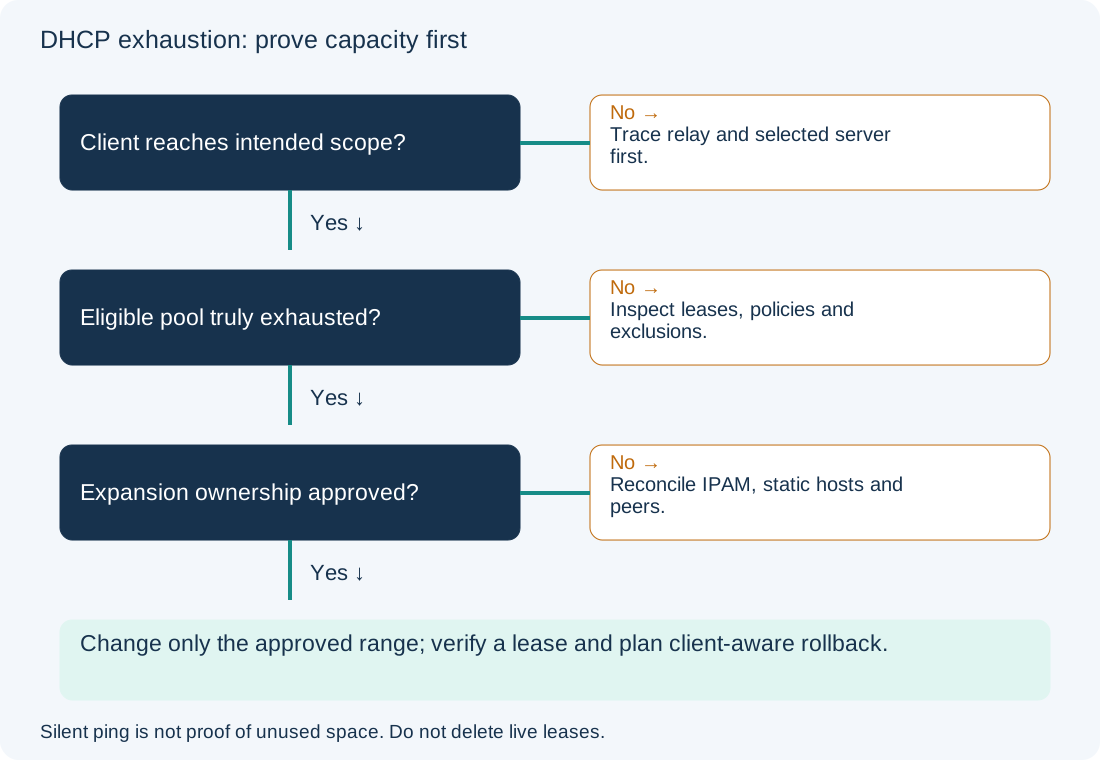
A DHCP server can be healthy and still have no eligible address for a new client. Before expanding a range, distinguish real capacity exhaustion from exclusions, policy ranges, reservations, declined addresses and the wrong scope. Extending into undocumented static allocations can turn a lease shortage into duplicate-address outages.
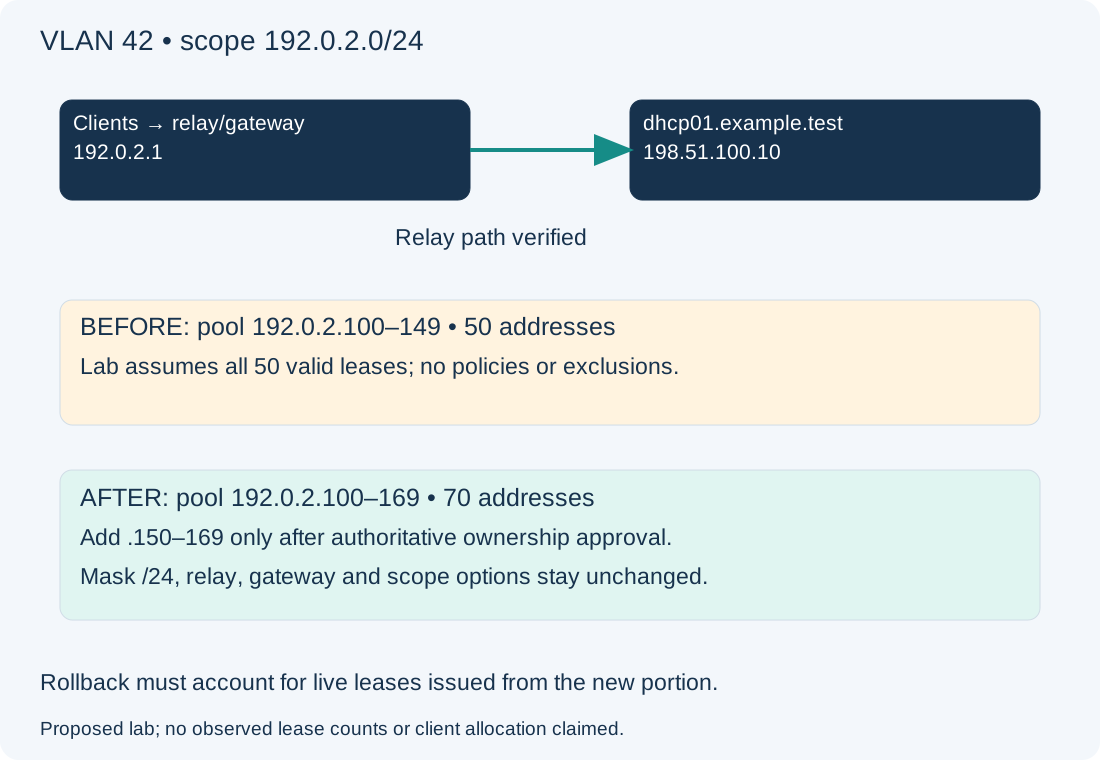
Scope and evidence: Hypothetical standalone Windows Server 2022/2025 DHCP service dhcp01.example.test at 198.51.100.10, managed using Windows PowerShell 5.1 with the DhcpServer module. Scope 192.0.2.0/24 serves VLAN 42 through relay/gateway 192.0.2.1. Its existing pool is 192.0.2.100–149; the proposed addition is .150–169. No live leases, packet captures or successful allocation are claimed. Failover, split-scope, superscopes and policy-specific ranges require their own capacity and replication review.
Confirm the DHCP Client Reaches the Intended Scope
Record the client identifier, VLAN, relay identity, attempted time and server that handled the request. A client with no lease is not proof that every server pool is full. If the intended scope still has eligible free capacity, use the separate free addresses but no lease guide to trace relay, scope selection and response delivery.
Check DHCP Scope Statistics, Lease States and Exclusions
From an authorized administrator session with the module installed, run these read-only queries:
$dhcpHost = 'dhcp01.example.test'
$scopeId = '192.0.2.0'
Get-DhcpServerv4Scope -ComputerName $dhcpHost -ScopeId $scopeId
Get-DhcpServerv4ScopeStatistics -ComputerName $dhcpHost -ScopeId $scopeId
Get-DhcpServerv4ExclusionRange -ComputerName $dhcpHost -ScopeId $scopeId
Get-DhcpServerv4Reservation -ComputerName $dhcpHost -ScopeId $scopeId
Get-DhcpServerv4Lease -ComputerName $dhcpHost -ScopeId $scopeId -AllLeases |
    Select-Object IPAddress, ClientId, AddressState, LeaseExpiryTime
The initial variables are reused below; set them again in a new shell. Expected lab evidence is an active /24 scope, a range ending at .149 and no free eligible addresses. The simple lab has no exclusions, reservations, policies or failover; all 50 addresses are occupied by current valid leases. Actual environments must derive capacity from their own constraints, not copy that arithmetic. Microsoft documents scope statistics and all-state lease queries.
| Finding | Why it changes the diagnosis | Next action |
|---|---|---|
| Current valid leases fill eligible pool | Capacity can be genuinely exhausted | Validate demand and an address-plan remedy |
| Many declined/BAD_ADDRESS records | Conflicts can consume apparent capacity | Investigate competing address owners before reuse |
| Scope free but matching policy range full | Aggregate totals hide per-client eligibility | Inspect matching policy and its range |
| Exclusions or reservations dominate | Administrative allocation reduces dynamic availability | Reconcile intended ownership, not blanket removal |
| Failover peer owns available capacity | Local view may not mean total exhaustion | Review relationship state and partner capacity |
An old timestamp does not make a lease safe to delete: the client may still use the address, and server state and client behavior can differ. Do not mass-delete leases or clear BAD_ADDRESS records without identifying their cause. Shortening lease duration is not an immediate creation of free addresses and increases renewal traffic. Microsoft’s DHCP troubleshooting guidance establishes the client/relay/server boundaries.
Verify Address Ownership Before Expanding a DHCP Scope
Before any change, obtain authoritative IPAM/address-plan approval for .150–169. Review static hosts, reservations on every DHCP service, network equipment, failover ownership and any historical assignment. A silent ping is not evidence that an address is unused: a host may be offline or block ICMP. Correlate inventory, network observations and the address owner.
Record the existing scope and options, including router and DNS values. Export/backup the server configuration through the organization’s recovery process. Confirm the scope is standalone and no class/policy changes eligibility:
Get-DhcpServerv4Policy -ComputerName $dhcpHost -ScopeId $scopeId
Get-DhcpServerv4Failover -ComputerName $dhcpHost
Get-DhcpServerv4OptionValue -ComputerName $dhcpHost -ScopeId $scopeId
Empty policy/failover results are expected only for this lab; investigate unexpected objects rather than ignoring them. These checks do not inventory another independent server. The proposed .150–169 extension adds 20 addresses within the existing /24. A mask change or another subnet is a redesign involving clients, gateway and routing, not this small range extension.
Expand Only the Approved DHCP Range Within the Existing Subnet
Configuration change — standalone lab scope. After approval and backup, preview the updated start/end pair and then confirm it:
Set-DhcpServerv4Scope -ComputerName $dhcpHost -ScopeId $scopeId -StartRange 192.0.2.100 -EndRange 192.0.2.169 -WhatIf
Set-DhcpServerv4Scope -ComputerName $dhcpHost -ScopeId $scopeId -StartRange 192.0.2.100 -EndRange 192.0.2.169 -Confirm
This retains the existing start address and changes only the pool end. It does not change subnet mask, relay, options or static allocations. -WhatIf does not test whether another device owns the new addresses. Verify target-image support and current settings using Set-DhcpServerv4Scope. Do not copy this onto an unreconciled failover relationship.
Verify New DHCP Leases and Roll Back Without Disrupting Clients
Requery scope and statistics. The target lab capacity is 70 pool addresses before subsequent allocations; expected free capacity rises by up to 20. Use one disposable client on VLAN 42 to request a lease, and inspect its ipconfig /all result alongside the server record. A controlled ipconfig /renew sends an actual request and may affect that client’s configuration; do not release a remote production management lease. Confirm the server identifier, /24 mask, gateway, DNS and application path, then watch for conflicts. An address lease alone does not establish routed connectivity; see the VLAN gateway guide.
Rollback is not just shrinking a number after clients have consumed new addresses. Query records in the extension (this filter is specific to this /24):
Get-DhcpServerv4Lease -ComputerName $dhcpHost -ScopeId $scopeId -AllLeases |
    Where-Object { $lastOctet = $_.IPAddress.GetAddressBytes()[3]; $lastOctet -ge 150 -and $lastOctet -le 169 } |
    Select-Object IPAddress, ClientId, AddressState, LeaseExpiryTime
If any new address has been issued, stop new allocation from that portion using a reviewed temporary exclusion, and coordinate client migration/expiry before restoring the old end. An exclusion does not revoke an existing client address. Check reservations, actual clients and all lease states as well as the server table. Do not force-delete live leases to make the rollback appear safe.
Only when no client or reservation depends on the extension, no conflicting temporary range configuration remains, and the recorded baseline is still correct, restore it:
Set-DhcpServerv4Scope -ComputerName $dhcpHost -ScopeId $scopeId -StartRange 192.0.2.100 -EndRange 192.0.2.149 -Confirm
Expect the known capacity shortage to return unless demand has changed. Track utilization trends and allocation ownership so capacity work can happen before a pool is full. Relay gateway redundancy is a separate concern covered by the HSRP guide.